














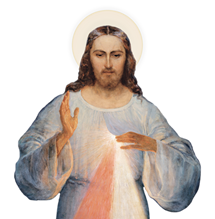

National Shrine Screensaver

Now you can experience a little bit of the National Shrine in your own home as the words of the Chaplet of Divine Mercy appear on your screen along with images of the National Shrine and Saint Faustina while your computer is idle. You can also pray the Chaplet during the Hour of Great Mercy using your National Shrine Screen Saver.
At this time, the National Shrine Screen Saver is compatible with Windows 98 or higher and Mac OS 9.

Mac OS 9
Download File
To install: Place the file "Divine Mercy Screen Saver" into the Control Panels folder located in your System folder. Restart your computer. The screen saver is set to activate after 3 minutes of inactivity or when you place your cursor in the lower left corner of your desktop. By selecting the "Divine Mercy Screen Saver" in the Control Panels you can reconfigure the settings. On older machines response time may be affected by running screen savers.
To turn off or modify settings: Select the "Divine Mercy Screen Saver" in the Control Panels folder. A box will appear on your screen that contains an On and Off switch. Click on the Off switch.
To un-install: Go into the Control Panels folder located in your System folder and drag the "Divine Mercy Screen Saver" into the trash. Restart your computer.
Windows
Download File
To Download and Save file: Click on download screen saver. A "Save As" pop-up window is displayed; save the DivineScreenSaverPC.exe file to your hard drive. (the file is a compressed format file)
To Decompress the file: Click on Start, select Run, type in the full path name of the downloaded file: C:\...\DivineScreenSaverPC.exe, click on OK. A pop-up message window with the following message should appear: "This is a self-extracting..."; click on OK. Next, a pop-up window should appear; enter the full path name of the folder where you want the decompressed file to be stored. Click OK. (the decompressed files will be stored in a subfolder named "DivineScreenSaverPC")
To Install: Click on Start, select Run, type in the full path name of the decompressed file C:\...\DivineScreenSaverPC\DivineSaver.exe, Click OK. (A message window should be displayed to tell you that the screen saver was installed)
To Turn Off or Modify Settings: Click on Start, select Settings, select Control Panel, select Display. This should bring you to the display settings window. From this window, select the Screen Saver Tab. Adjust the properties, apply the settings, and close the window. The screen saver should become active whenever there is no keyboard/mouse activity after the time limit entered in the screen saver settings.
To Uninstall: Delete the following files from your hard drive:
\Windows\Divine Mercy.scr
\Windows\Divine Mercy.dll
\Windows\DivineMercy.exe
\DivineScreenSaverPC\DivineSaver.exe
\DivineScreenSaverPC\Readme
